Set up a meeting and publish the agenda
Open Meetings & agendas. Upcoming and past meetings are listed, with whether the agenda is posted, how many items are waiting for the clerk, and the state of the minutes. Adding a meeting, publishing an agenda and everything below needs the Approver or Administrator role. Editors can add agenda items for their own department; see Agenda items.
Add a meeting
- Choose Add a meeting.
- Choose the Council or board, enter a Title (for example, Regular Meeting), and set the Date and Time under When.
- Optionally fill in Where, a Deadline for agenda items (departments can add items until then; the clerk can always add more) and a Video link.
- Choose Save. To change a meeting later, open it and choose Change the details; the Status there can be set to Cancelled.
On the meetings list, Notice before a meeting holds Hours of notice. If you post an agenda closer to the meeting than that, you are warned and asked to confirm. Leave it blank for no warning.
Build the agenda
On the meeting's screen:
- Waiting for you lists items that departments have sent. For each one, choose the heading in Under and choose Approve, or choose Return with a note, say What needs changing and choose Return it.
- Add an item adds one yourself.
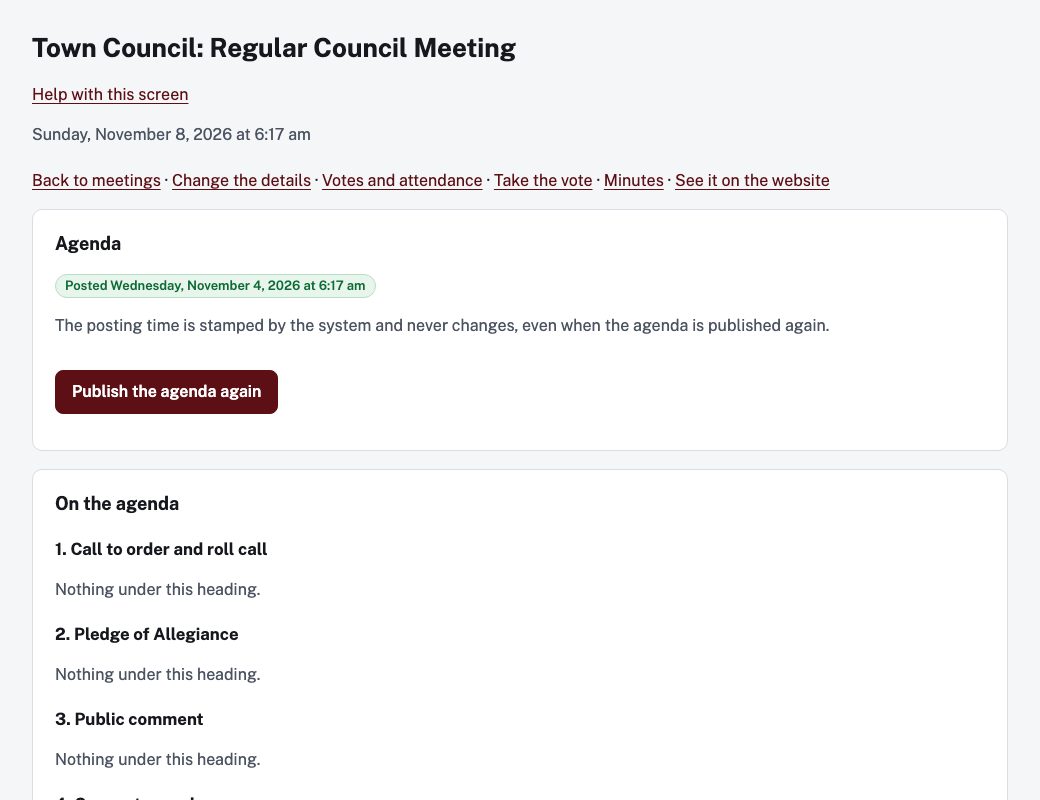
- Under On the agenda, each item has Move up, Move down and Move to (another heading). Change the standing headings lets you edit the headings, one per line.
Publish it
Choose Publish the agenda. The posting time is stamped by the system and never changes. If you change the agenda afterwards, the button becomes Publish the agenda again and the agenda is marked as amended.
If the meeting is closer than the notice you set, a notice appears and you can choose Post anyway, with short notice; this is noted in the meeting's history.
Packets
Once the agenda is posted, PDF and packets shows whether the Agenda PDF and Agenda packet are Ready, being made, or have had a problem. Make them again rebuilds them. An item marked Closed session shows only its subject on the public agenda; its report goes in the Council packet, which only staff and council can open.
Votes, attendance and minutes have their own articles: Record a vote live and Minutes.