Departments, boards and the staff directory
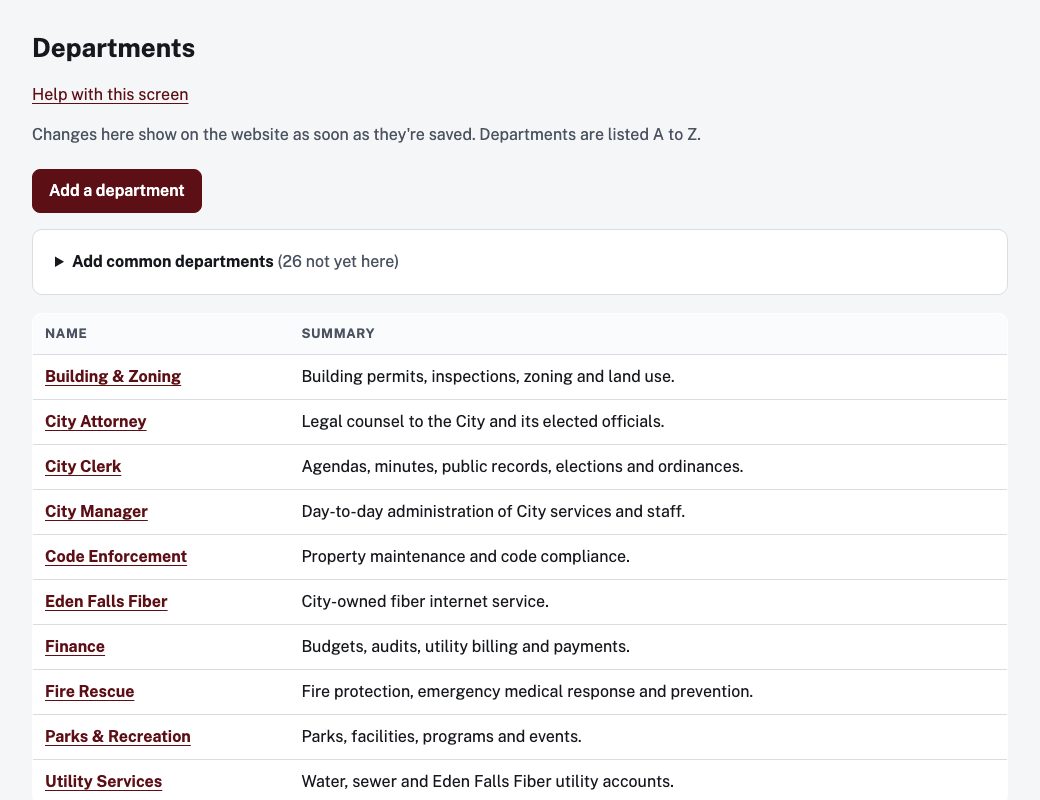
Under Website in the admin menu are three lists: Departments, Staff directory and Boards & councils. Changes here show on the website as soon as they are saved, with no approval step. Approvers and administrators can add, change and delete entries. Other staff can open an entry and read it.
Add an entry
- Open the list and choose Add a department (or Add a directory entry, or Add a board or council).
- Fill in the form and choose Save.
What each form asks for:
- Departments: Name, Address on the website, Summary (one sentence, shown in the list of departments), Phone, Email, Address, Hours, Its own website (optional, for a department with a separate site) and About the department.
- Staff directory: Name, Job title, Department (optional), Email and Phone.
- Boards & councils: Name, Address on the website, When it meets, Seats, Quorum, A motion passes by, The presiding officer, and About this board. The voting rules here are what the record screen checks a roll call against.
Add common departments
On the departments list, Add common departments opens a list of the departments most often found on city and county websites. Tick the ones you have and choose Add ticked. They appear on the website right away with a one-line description. Open each to add contact details.
Change the order
Boards & councils and the Staff directory are shown on the website in the order of the list. Move up and Move down change it. Departments are listed A to Z.
Delete
Open the entry and choose Delete this department (or the matching wording). You are asked to confirm. Every entry has a change history at the bottom.