Build an online form and read its entries
Online forms let residents fill something in on the website instead of printing a PDF. Open Online forms, which appears when your town has turned on the forms module. Only administrators can build or change a form. Approvers, administrators and editors in the form's department can read its entries.
Make a form
- Under Make a form, enter a Form name (for example, Pavilion reservation) and choose Make form.
- Add each question under Add a field: choose the Kind of field, enter the Label residents will read, add an optional Hint, tick Required if it must be answered, and choose Add field. For a choice, put one choice per line in Choices, one per line.
- The kinds of field are: Short answer, Long answer, Email address, Phone number, Number, Date, Pick one (list), Pick one (buttons), Pick any, Yes or no, Agreement (one checkbox), Heading (text only) and Paragraph (text only).
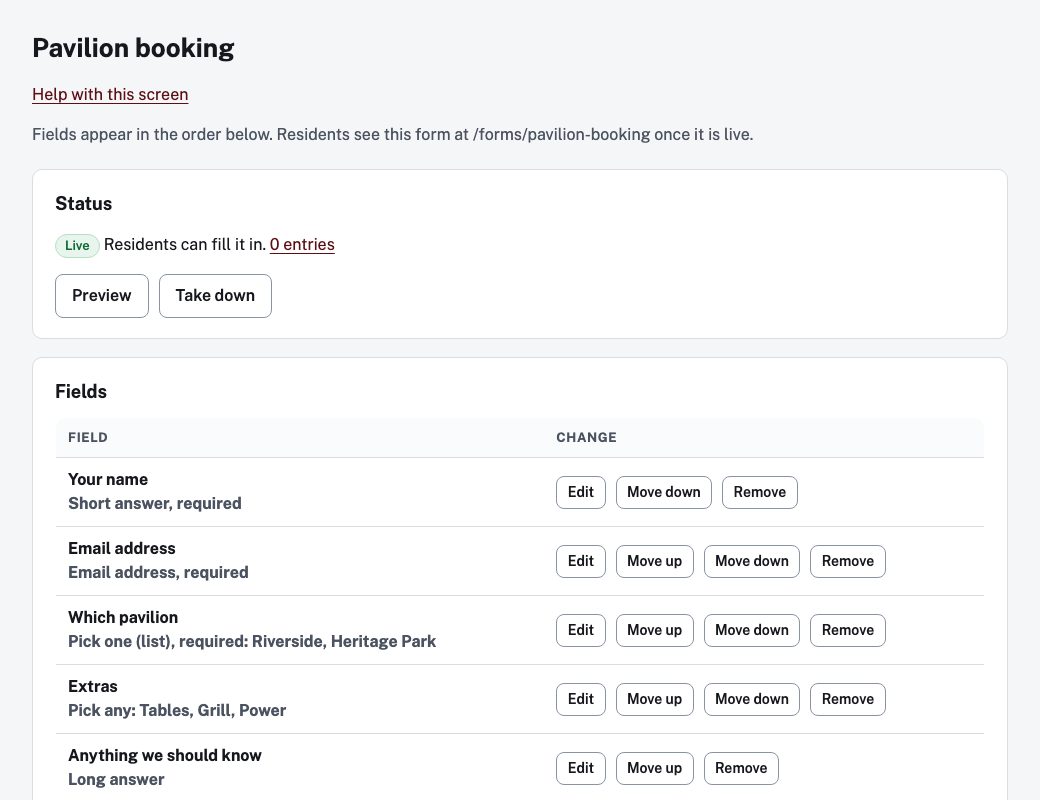
Under Fields, each field has Edit, Move up, Move down and Remove. To change the kind of field, remove it and add another. Entries already sent keep their answers when you remove a field.
Wording and inbox
Under Wording and inbox:
- Introduction (optional) shows above the form.
- Thank-you message (optional) shows after sending. Say what happens next.
- Department: editors in this department can read the entries.
- Email each new entry to (optional).
- Days to keep entries: after this, names and answers are removed.
Choose Save.
Make it live
Under Status, choose Preview to see the form as residents will, while only staff can see it. Choose Make live when it is ready. If something stops it going live, the screen lists what to fix, for example Add at least one field people fill in. or that a pick-list needs at least two choices. Take down stops residents filling it in until you make it live again.
Read the entries
Choose the number of entries beside the form, or open the form and choose its entry count. On the entries screen:
- Find by reference, name or email, and Show (Open ones or All), then Show.
- Download all as a spreadsheet (CSV) saves every entry.
- Choose an entry's reference to see its Answers. Under Handling, set the Status (New, In progress, Done or Archived), add a Note for staff (never shown to the sender) and choose Save.
A form with no entries can be removed with Delete form.