Reports and messages from residents
Open Reports & requests, under Residents. It lists what residents have sent the city. Each one also goes to its inbox by email.
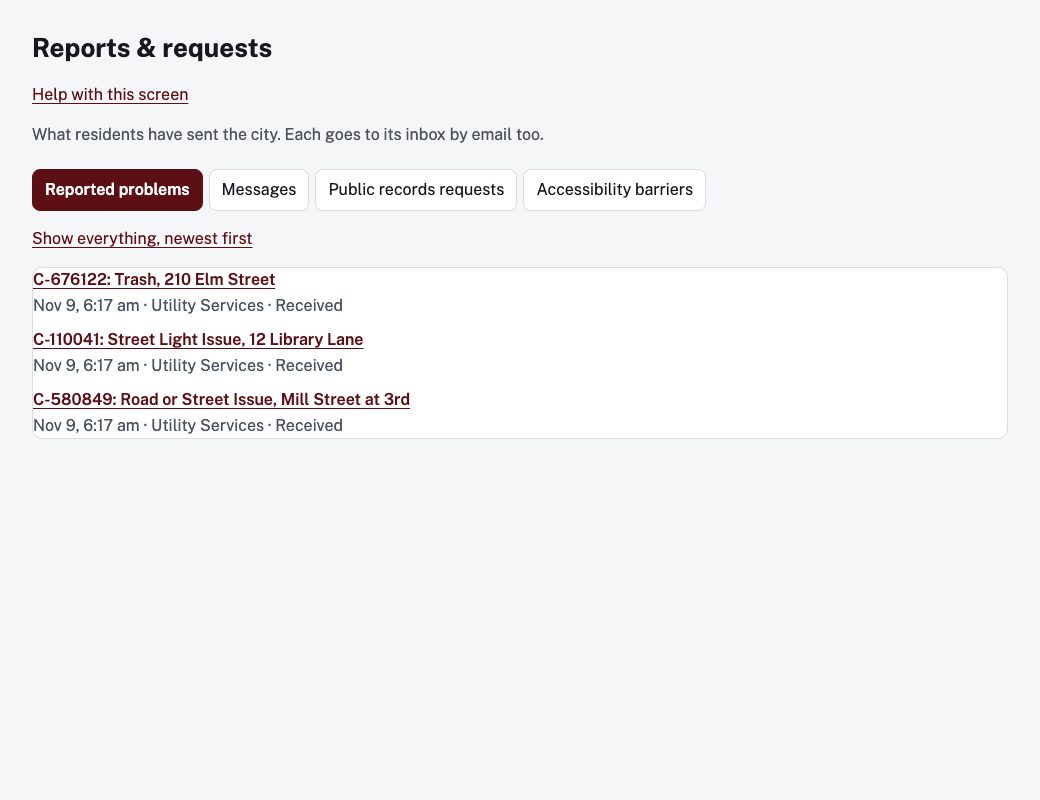
Find what to answer
The tabs are Reported problems, Messages, Public records requests and Accessibility barriers. Editors see only the first two, and only items sent to their own departments. Approvers and administrators see all of them and every department. If your town uses the records module, the Public records requests tab opens that module instead: see Answer a public records request.
A link under the tabs switches between Show only open ones (oldest first) and Show everything, newest first. A row that has waited too long says Waiting longer than it should.
A reported problem
Open it to see the status, where it is, the details the resident gave, how many others said it is the same problem, the department, any photos (staff only), and a map. Under What happened:
- Note for the resident is optional and is sent to them if they gave an email.
- Mark in progress (only while it is still new), Mark fixed or Close without fixing.
- Once closed, Open it again brings it back.
- Take off the Service Requests page removes it from the public Service Requests page. Do this if it names someone, repeats another report or should not be public. Staff still see it. Put back on the Service Requests page reverses it.
- Approvers and administrators can change the Department and choose Move it.
A message
Open it to see the subject, message and who sent it. Add a Note for the record saying how it was answered, then choose Mark answered or Close. Reply to the resident by email or phone as usual: this screen records the answer, it does not send one. Open it again reverses either.