Find and manage pages, news and other content
Pages, news stories, public notices, bids, events, careers and FAQs each have a list in the admin menu, under Website. A kind of content only appears in the menu when your town has turned it on under Settings, then Features & quick links. All of the lists work the same way.
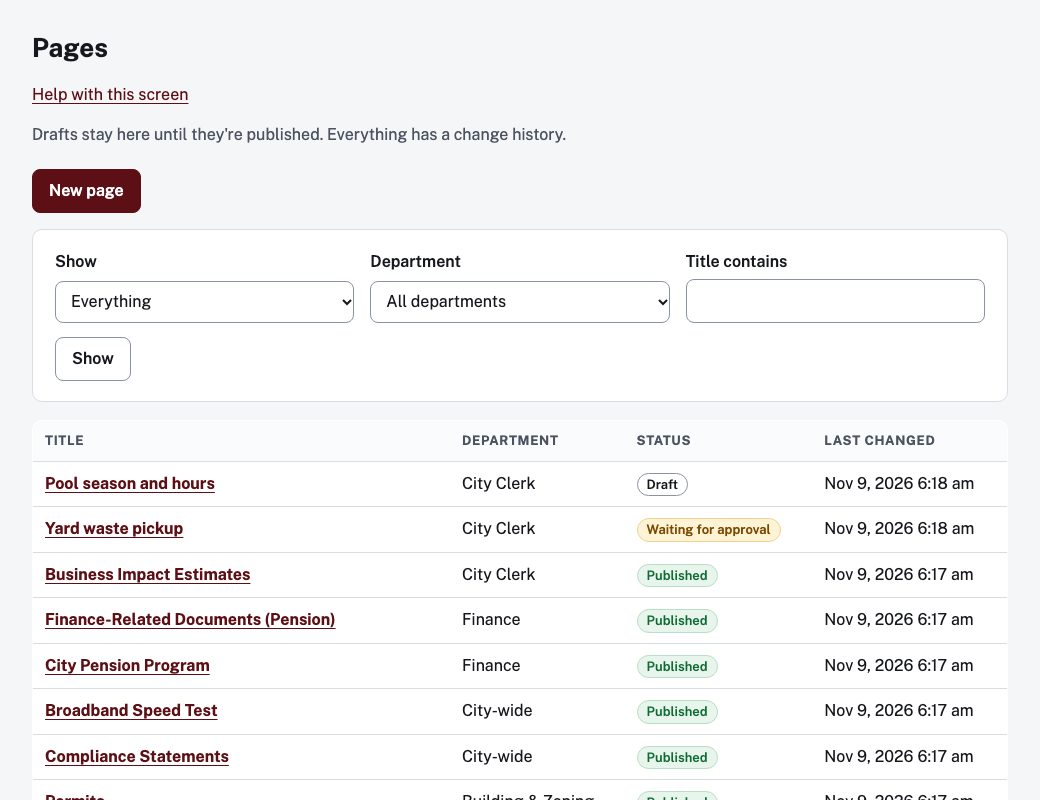
Find something
Above the table, use the filters and choose Show:
- Show narrows the list by status: Everything, Drafts, Waiting for approval, Returned with a note, Scheduled to publish, On the website, On the website, with changes in progress or Unpublished.
- Department limits it to one department, or All departments.
- Title contains finds words in the title.
Choose Clear to go back to everything. The list is sorted with the newest changes first, and each row shows the Department (or City-wide), the Status and who last changed it and when.
Open a row by choosing its title. What you can do next is in Publish a page.
Add something
New page (or New news story, New event and so on) is at the top of the list. It is shown to administrators, approvers, and editors who belong to at least one department. A person with the View only role can read the lists but not add or change anything.
FAQs
The FAQs list has two more buttons: Question groups and Answers due to be checked. See Keep FAQs correct.