Edit the website menus
Open Settings, then Menus. Only administrators can use Settings. The menus are the sections across the top of every page and the links inside each. A link tied to a feature takes that feature's name and link, and hides itself when the feature is off.
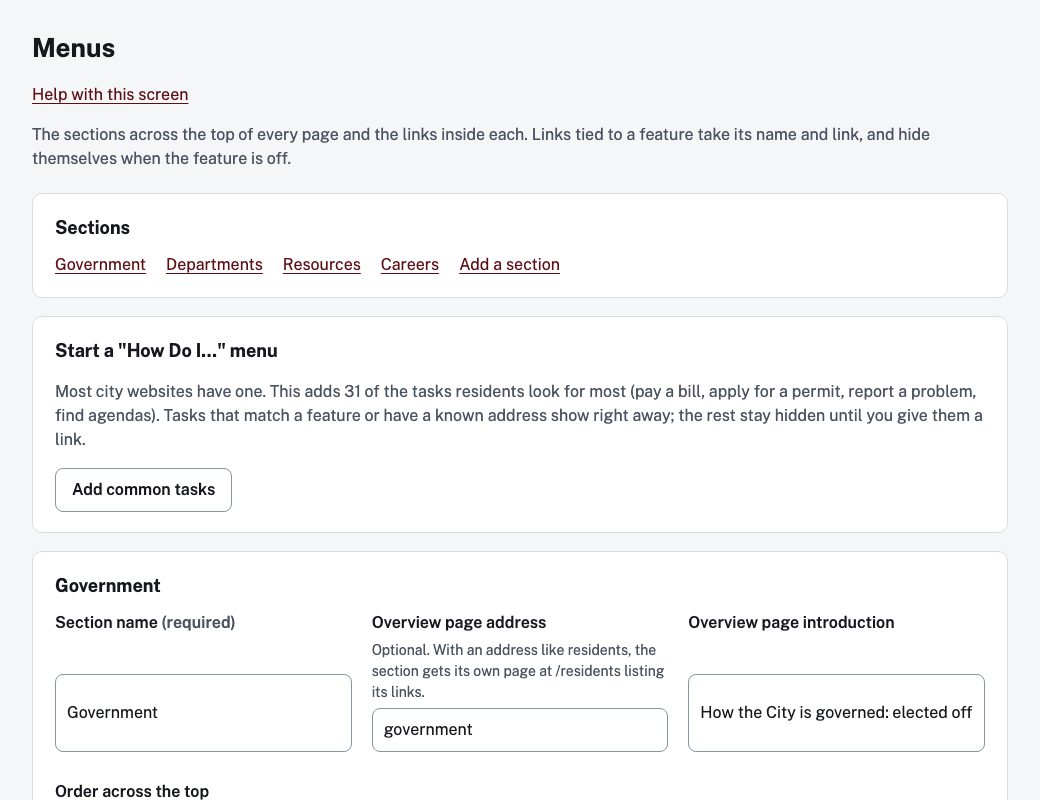
Change a section's links
Each section has its own box. Change the details and choose the Save button at the bottom of that section's box (it reads Save the, then the section's name, then menu).
- Section name, Overview page address, Overview page introduction and Order across the top. With an address like
residents, the section gets its own page listing its links. - Show this section on the website hides or shows the whole section.
- Links in this section is a table. Each row has Name, Link, Tied to feature, Group heading, Column, Order, Shown and Remove. Column 0 to 3 places a link in the menu's columns; a group heading starts a new group within a column.
- The last three rows of each table are empty. Fill one in to add a link.
Tick Remove on a row and save to delete the link. the Remove button for the section (it reads Remove the, then the section's name, then section) deletes the whole section and all of its links after you confirm.
Add a section
Use Add a section at the bottom: enter a Section name, optionally an Overview page address, and choose Add section.
Start a "How Do I..." menu
Add common tasks adds the tasks residents look for most, such as paying a bill, applying for a permit, reporting a problem or finding agendas. Tasks that match a feature or have a known address show right away. The rest stay hidden until you give them a link. If the menu already exists, the button reads Add any missing common tasks.
The screen ends with a change history.